Automate Shopify Collections with AI: From Manual to Automated
Tired of creating Shopify collections by hand? Learn how to go from manual to rule-based to AI-automated collections, with steps for each method.

by YesPlz.AINovember 29, 2026

Tired of creating Shopify collections by hand? Learn how to go from manual to rule-based to AI-automated collections, with steps for each method.
by YesPlz.AINovember 29, 2026
Quick Answer: AI can help automate Shopify collections by analyzing product images, identifying relevant product attributes, and generating product tags or metafield values.
You can then use this product information to create collection conditions that automatically group matching products.
Manual collections become difficult to manage as your product catalog grows. Rule-based collections save time, but they rely on accurate, consistent product data. This is where AI comes in.
In this guide, we'll walk you through the basics of Shopify manual and rule-based collections. Then, we'll show you how AI can handle the time-consuming tasks, making collection management easier as your catalog grows.
A collection works best when it meets a specific shopper need. Before creating one, think about the shopper’s intent. Ask yourself: What is this shopper looking for?
For a fashion store, shopping intent usually falls into one of these groups:
Type of Intent | Example Collections |
Season or Weather | Summer dresses, rainy-day essentials |
Holidays and Events | Christmas, Valentine's Day, New Year's Eve |
Activities and Lifestyle | Workwear, activewear |
Shopping Preferences | New arrivals, best sellers, discounted items |
Themes and Styles | Minimalist clothing, vintage fashion, Y2K outfits |
Pick one clear intent for each of your Shopify collections. For example:
Shopping intent: Finding dresses for summer vacations.
Collection: Summer Vacation Dresses.
Relevant products: Floral maxi dresses, lightweight linen dresses, and casual sundresses.
Once you've decided on your collection, the next step is to turn the intent into a short list of details a product needs to have.
Next, define what a product needs to qualify for each collection. For example, if you're creating a Summer Vacation Dresses collection, here's what you might look for:
Product information | Value |
|---|---|
Product category | Dresses |
Product type | Summer Dress |
Product tags | summer, floral, vacation |
Product attributes | Color: Pink; Fabric: Cotton; Style: Bohemian |
Product price | $50–$100 |
These details help you determine which products belong in your collection. They also show you what product information you need to organize in Shopify.
Shopify uses product information, such as product categories, tags, prices, and supported metafields, to match products with collection conditions.
For example, you can create a condition to include products tagged "summer" and products categorized as "dress.” Shopify will then automatically include products that match both conditions.
Keep in mind that not every product attribute is automatically available as a collection condition. For example, you can use product categories and prices directly. Other attributes, such as occasion, style, and fabric, can be stored in product tags or supported metafields.
If the attributes you need aren't available in your product data, you'll need to add them before creating the relevant rules. Think of this as preparing your catalog for automation.
To create a new collection in Shopify, follow these steps:
From your Shopify admin, go to Products > Collections > click Add collection.
Click Add title to enter a name for your collection, such as Summer Vacation Dresses.
Click Add description to write a description of the collection using the rich text editor.
To add a featured image, click the upload icon, select an image, and click Done.
Add the relevant product sources. Shopify supports products, variants, existing collections, and app sources.
Click Save.
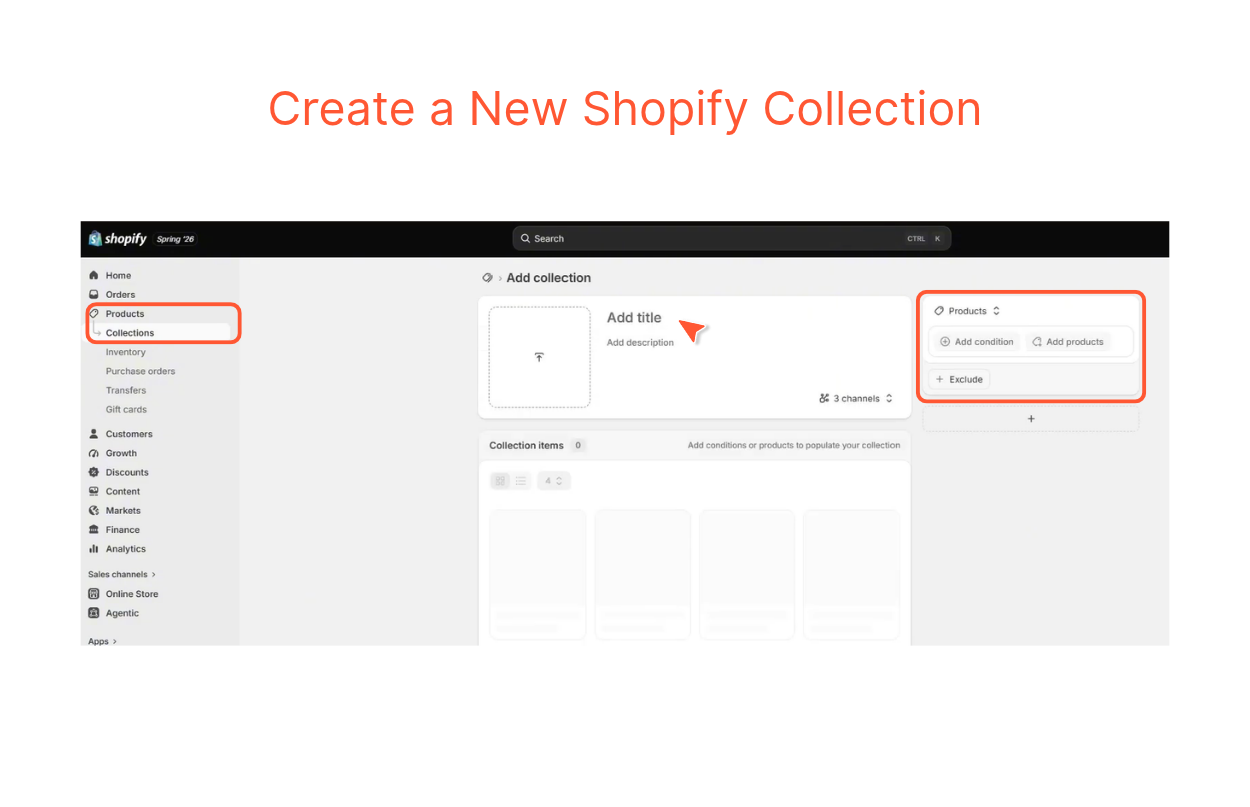 A new collection starts with an empty Products source. You can add products manually or set conditions to include matching products automatically. We'll cover both methods in the next step.
After creating a new collection, you need to decide how to add products to it. Shopify supports manual product selection and automatic product selection based on conditions.
The best approach depends on your product catalog, how often you add new products, and how well-organized your product data is.
Factor | Manual selection | Rule-based selection |
Product catalog | Small | Medium to large |
New product arrivals | Infrequent | Frequent |
Product data | Can be less structured | Needs consistent data |
Collection style | Handpicked and curated | Based on specific rules |
Maintenance | Manually update products | Update product data or collection conditions |
Let's look at how each method works.
Small, curated collections where you want to choose every product yourself.
Let’s say you might create an Editor's Picks collection featuring products selected by your team. These products don't necessarily share the same tags, categories, or other attributes. You simply want to handpick the items that appear together.
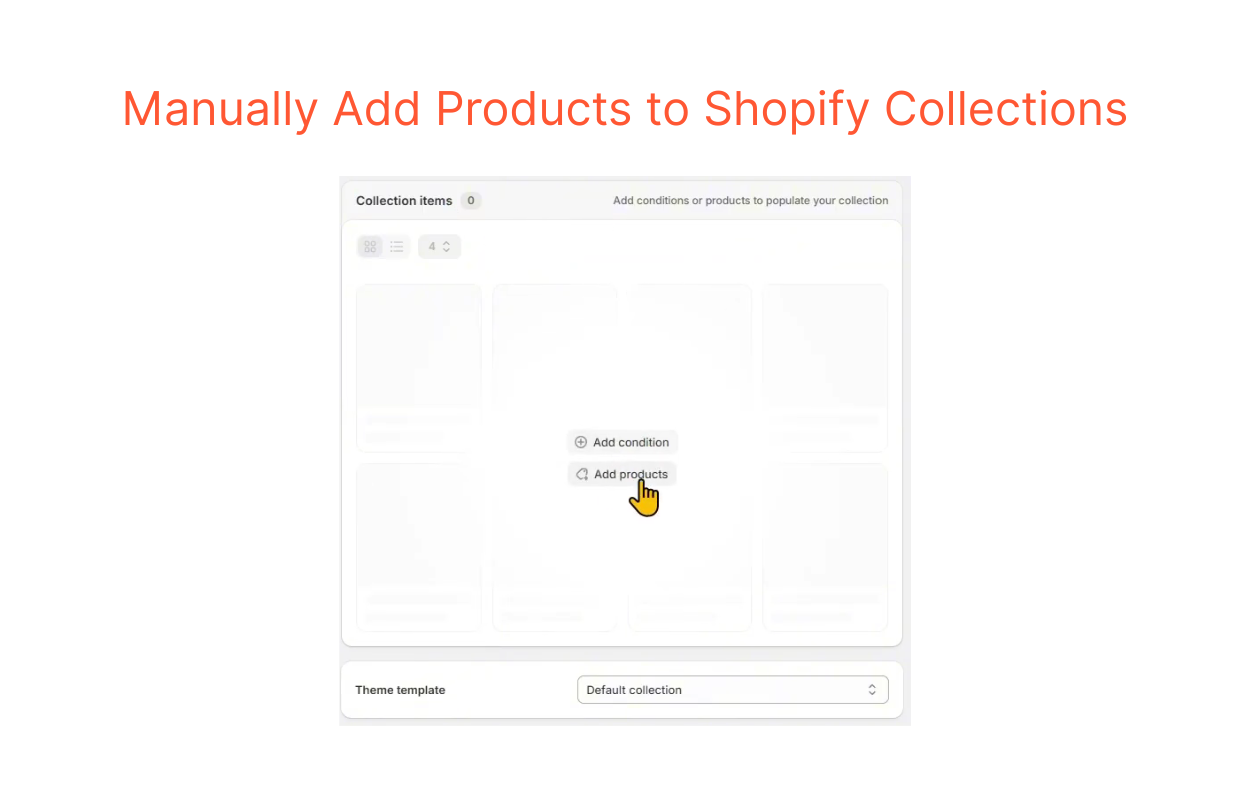 How to add products manually:
From your Shopify admin, go to Products > Collections.
Click the collection you want to edit.
Under the Products source, click Add products.
Select the products you want to include.
Click Add.
Click Save.
Manual selection gives you complete control over which products appear in a collection. However, it becomes harder to manage as your catalog grows.
Time-consuming: You need to select products individually. This takes longer when you have hundreds or thousands of products.
Requires regular updates: New products won't automatically appear in the collection, even if they fit its theme. You need to add them yourself.
Harder to maintain: When products go out of stock or no longer fit the collection, you need to review and update the collection manually.
Manual collections work well for small, handpicked groups. But if you frequently add products or manage a large catalog, rule-based collections can save you time.
Shopify collections that follow specific rules and need to update as your product catalog changes.
Unlike manual selection, this method lets Shopify determine which products belong in a collection based on conditions you define. When you add a new product with the matching tag, Shopify can automatically include it in the collection. Let’s come back to the Summer Vacation Dresses.
Category: Include products categorized as Dresses.
Type: Include products with the type Summer Dress.
Tags: Include products tagged summer.
Vendor: Include products from a specific brand, for example, Mango.
Inventory stock: Include products with inventory greater than zero.
Metafields: Include products with specific values for attributes such as fabric: lightweight, fit: relaxed, or occasion: vacation, provided the metafield is supported and enabled for collection conditions.
You can combine multiple conditions to create more specific Shopify collections.
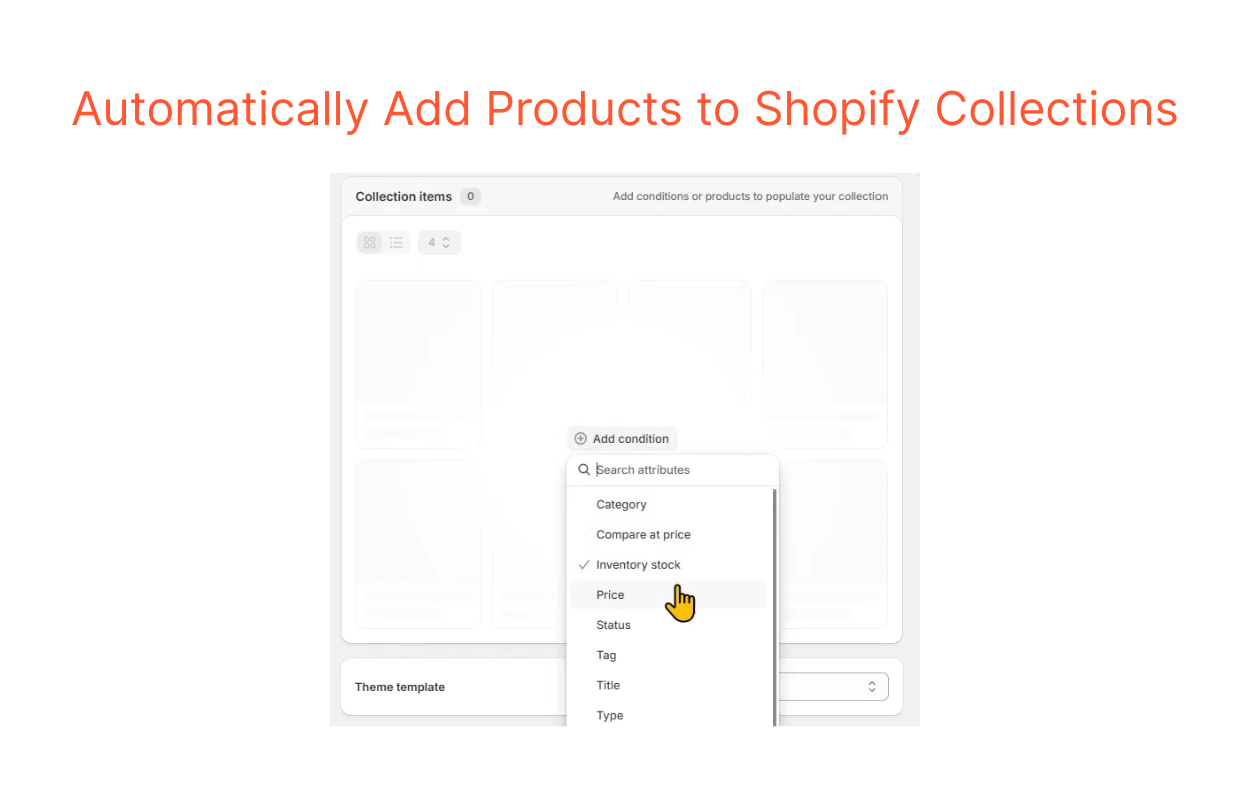 How to create an automated collection:
From your Shopify admin, go to Products > Collections.
Click the collection you want to edit.
Under the Products source, click Add condition.
Select the product attribute you want to use, such as Product category, Tag, Product type, or Inventory stock.
Select the matching criteria and enter or choose the relevant value.
To add more conditions, click Add condition again and repeat the process.
Choose whether products must Match all conditions or Match any conditions.
Click Save.
Rule-based collections reduce manual work. However, they still depend on how well you organize your product data.
Requires consistent product data: Shopify can only match products using the information available in your product fields, tags, and supported metafields. If a product is missing the summer tag, it won't match a condition that requires that tag.
Doesn't automatically identify product attributes: Shopify follows the conditions you create. It doesn't automatically recognize that a dress is suitable for summer vacations just by looking at its image.
Rule-based collections are useful when your product information is already organized. However, preparing for automation can still take time, especially when you manage a large fashion catalog.
Fashion retailers with large product catalogs that receive new products weekly and need to create and maintain multiple collections.
The process is similar to creating a rule-based collection in Method 2. The difference is how you prepare product information. Instead of identifying and entering product attributes manually as in step 2, you can use AI product tagging for fashion to generate attributes directly from product images.
AI analyzes each image and identifies relevant fashion attributes, such as product type, color, pattern, material, and style. It then generates corresponding product tags or metafield values that you can use as collection conditions.
Once the product attributes are available in Shopify, you can create a collection, add conditions based on the attributes you want, and save it. Shopify automatically adds products that match those conditions and updates the collection as new products receive the relevant attributes.
A collection only helps if shoppers can reach it:
Add a link to the collection in your online store menus, and feature it on the homepage.
Check your storefront filters. Collections with more than 5,000 products don’t display filters, which is worth flagging for large catalogs.
Since July 2026, Shopify's new collections model lets a single collection combine hand-picked products and automated products. You can include and exclude products in two ways: Manually: Choose specific products to include or exclude. Automatically: Set conditions to include or exclude products that match specific rules. This gives you more flexibility to manage one collection without creating separate manual and automated collections.
No. You don't need to delete or recreate your existing Shopify collections after the 2026 update. Shopify automatically updates existing collections to work with the new collections experience. Your current collections continue to work, and you can use the new features to manage them more flexibly.
Shopify doesn’t set an ideal number. As a practical guideline, try to include at least five products in a collection. If a collection has only one or two products, consider combining it with a broader collection. For larger collections, consider splitting products into smaller groups based on meaningful attributes, such as product type, style, color, or season. The goal is not to add as many products as possible. It's to make each collection relevant, easy to browse, and useful to shoppers. And keep the 5,000-product filter limit in mind.
Not natively. Shopify collections are flat, so you can't put one inside another. The workaround is a filter. Say you have a Wedding collection and want shoppers to narrow it to Bride, Wedding Guest, or Wedding Accessories. Tag each product with its sub-collection in a metafield, then add that metafield as a filter in Shopify's Search & Discovery app. To shoppers, it feels like a collection inside a collection.

Written by YesPlz.AI
We build the next gen visual search & recommendation for online fashion retailers
